Last night of course review:
::: Create a NEW Blog (OR change themes) :::
::: Find FREE CONTENT to (practice on only) here , here and here. (Generally, even though it’s legal if it’s designated FREE, it’s not a good idea to use free content for a real blog…. read HERE why) :::
::: To create an additional free blog site:
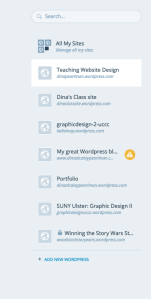
If you already have an account, Go to “Switch Site” in the blue blog mode (see second graphic below) and add a new site :::
Things to remember when setting up a new free WordPress site:
::: ::: ::: ::: ::: ::: DELETE THE “Hello, World,” post. NOW. ::: ::: ::: ::: ::: ::: :::
Do it.
Settings
General: Create a Title and/or tagline that increases SEO (who, what, where, why, how)
Reading: Is this a Blog or a Website? Homepage to be static or have blogposts?
Discussion: Decide if you want Comments. If so, activate Askimet AND use Settings/Discussion to set parameters
Appearance
Customize: colors, header image, logo etc. Check the Appearance/Header menu in the Dashboard for pixel sizes
Widgets: Do you want to have options for people to navigate via tags, archives and other methods?
::: To change themes, go to Appearance/Themes and pick a new theme.:::
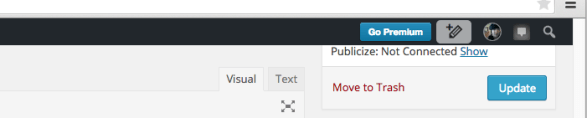
::: To upgrade to a .com, choose Go Premium button on the top righthand side of the black dashboard top bar:::
 Codex All about the Dashboard (Admin) area…Wordpress For Dummies: All about the Dashboard
From WordPress for Dummies:The WordPress Dashboard
The WordPress Dashboard gives you an all-in-one glance at your blog’s statistics and activity. The following table gives you brief descriptions of the main menu items in the WordPress Dashboard that apply across all versions of WordPress.com and WordPress.org. Each version provides different options, but the basic main menu of the Dashboard is standard across all versions.
| Menu | Description |
|---|---|
| Dashboard | Find basic information and statistics for your blog, as well as information from the WordPress Development Blog and other blogs run by those involved with WordPress development or resources. |
| Posts | Write new posts and edit previous ones. Create categories to organize your posts by topic; upload images; create post excerpts; send trackbacks; manage custom fields. |
| Media | View all media files you’ve uploaded to your blog, including images, audio, video and more. Upload and manage new media files with the built-in media uploader. |
| Pages | Write and publish new static pages for your blog, and edit or delete previous ones; and assign pages to custom page templates. |
| Comments | Manage comments here by viewing, editing, or deleting them; also manage your comment moderation queue and comment/trackback spam. |
| Appearance | Manage your WordPress themes by viewing them, activating them, and editing them in the Theme Editor. Use and configure Sidebar Widgets. |
| Plugins | View a listing of plugins installed in your WordPress blog. Find new plugins, install, activate, deactivate, upgrade, and edit them. |
| Users | Manage your users and subscribers and edit your own profile. |
| Tools | Import data into your blog from another blogging platform (such as Blogger, Typepad or Movable Type) or export your current blog data into a backup file. Upgrade your WordPress software to the latest version using the auto-upgrade feature! |
| Settings | Set the general options for your blog in this section. You find settings for blog posts, RSS feed, discussion options, privacy, and permalinks. |
TO see the whole article, click here
 Teaching Website Design
You must be logged in to post a comment.